Key Takeaways
- Highlight’s desktop app brings your daily brief, priorities, schedule, AI chat, and captured meeting notes into one window on Mac and Windows.
- To dos keeps action items and prepared drafts together, so you can review, edit, and approve follow-ups for your connected apps.
- Desktop gives deeper work more room, while the side panel stays beside your work and the Notch keeps quick controls within reach.
Most mornings start with a tour of your own tools. You check your calendar, skim Slack, search your inbox for all the threads that you owe replies to, and reopen the doc from yesterday's meeting. It can take the better part of an hour before you know what actually needs your attention.
The Highlight desktop app brings all of that into one window, so you start the day ahead instead of catching up. Home shows you what's relevant, what you missed and what's next. From there, ask Highlight anything in chat while agents handle your recurring work in the background. Highlight already has the context from your meetings, apps and screen, so you don't have to reexplain or reconstruct information.
It's available today on Mac and Windows. Here’s why we built it and what’s in it.
Why We Built the Desktop App
To date, most people have used Highlight in the Notch or the side panel, which stay within reach of whatever app you’re working in. They’re still the quickest way to use Highlight in the middle of a task. Over the past few months, users have told us that they needed more room for the deep work that comes out of meetings, like reviewing drafts, reading long answers, and making informed decisions on next steps.
We came to the same conclusion while building. Chat is a core part of Highlight that we plan to invest in and the side panel’s narrow column made long answers hard to read. Features like How You Work and Agents also need more room to be useful and digestible for the user, and a bigger canvas gives us space for what we’re building next.
A desktop app is also how most people already use AI. They open it from the dock, type a question, and keep it open alongside the rest of their work. We want to meet people where they are, so Highlight works the same way. There's no new habit to build: open it like any other app on your computer, and your day and your context are already there.
Home: Your Daily Brief, Priorities, and Schedule
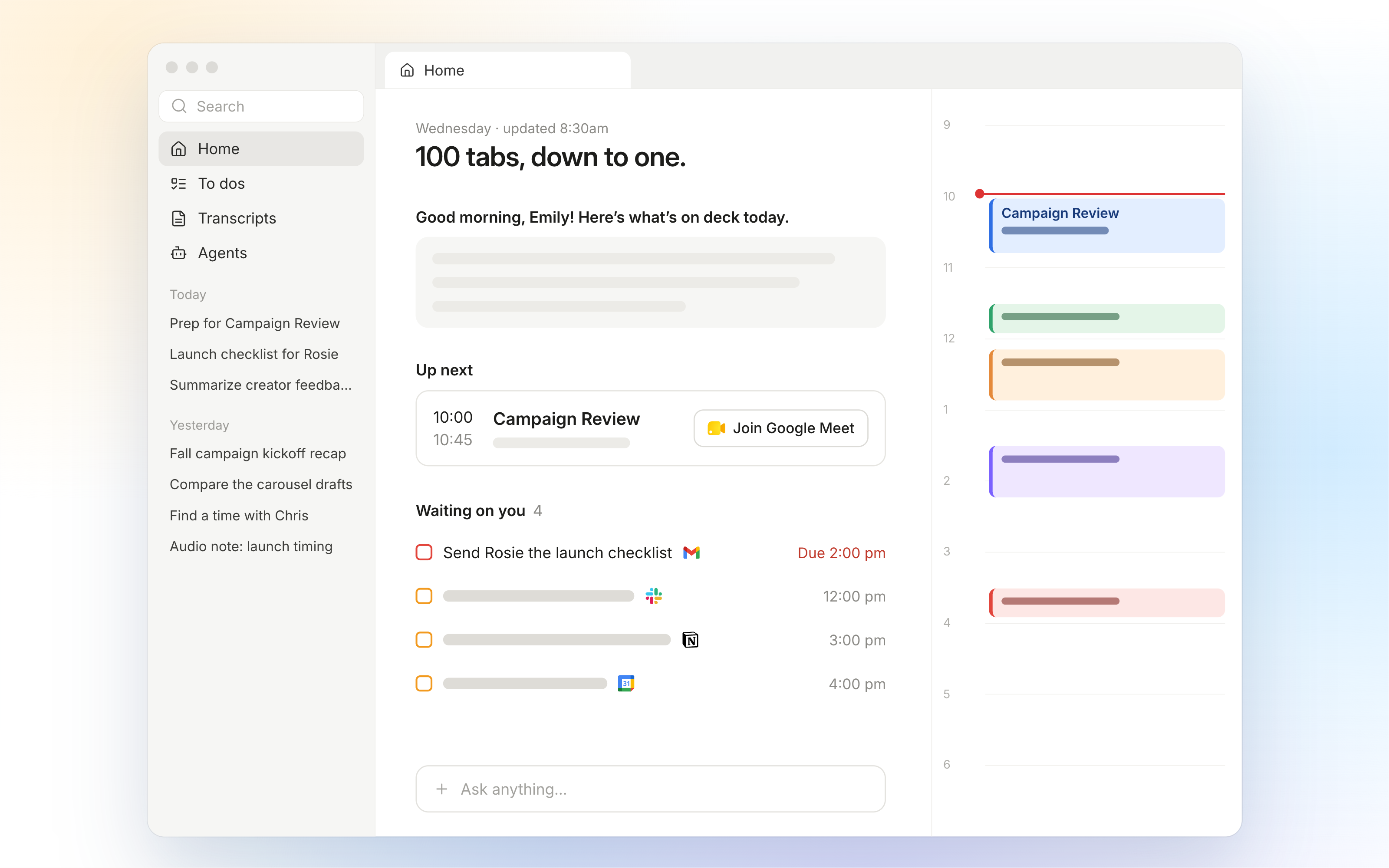
Home is the first screen you see. At the top is your brief, a short summary of what changed since yesterday and what's coming up today. Under it are your time-sensitive to dos, in the order they're due. Today's calendar sits in a sidebar, where you can open your next meeting, get briefed on it, and join with a single click.
Highlight builds this page from your connected apps, your meetings and what's on your screen, so it's already up to date when you open it.
To Dos: Review Action Items & Approve Drafts
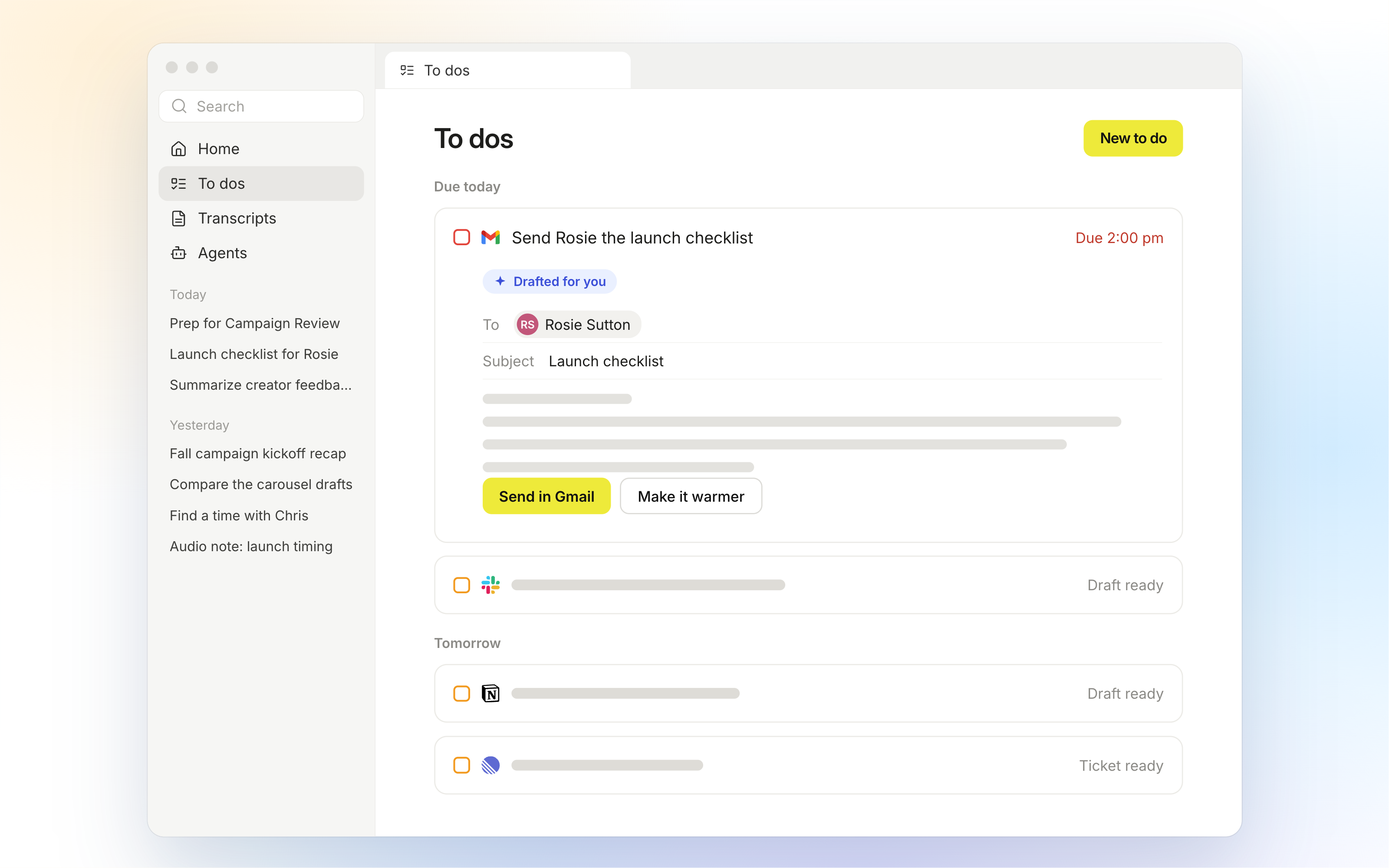
To Dos collects your action items in one list, grouped by due date. Many of them come with a draft: a follow-up email after a call, a status update for a Slack channel, notes on a doc someone asked you to review, or a Linear ticket ready to be filed.
You can edit a draft, then send it directly to the right app. You get the final say and nothing is sent until you approve.
Chat: Get Answers with Your Work’s Context
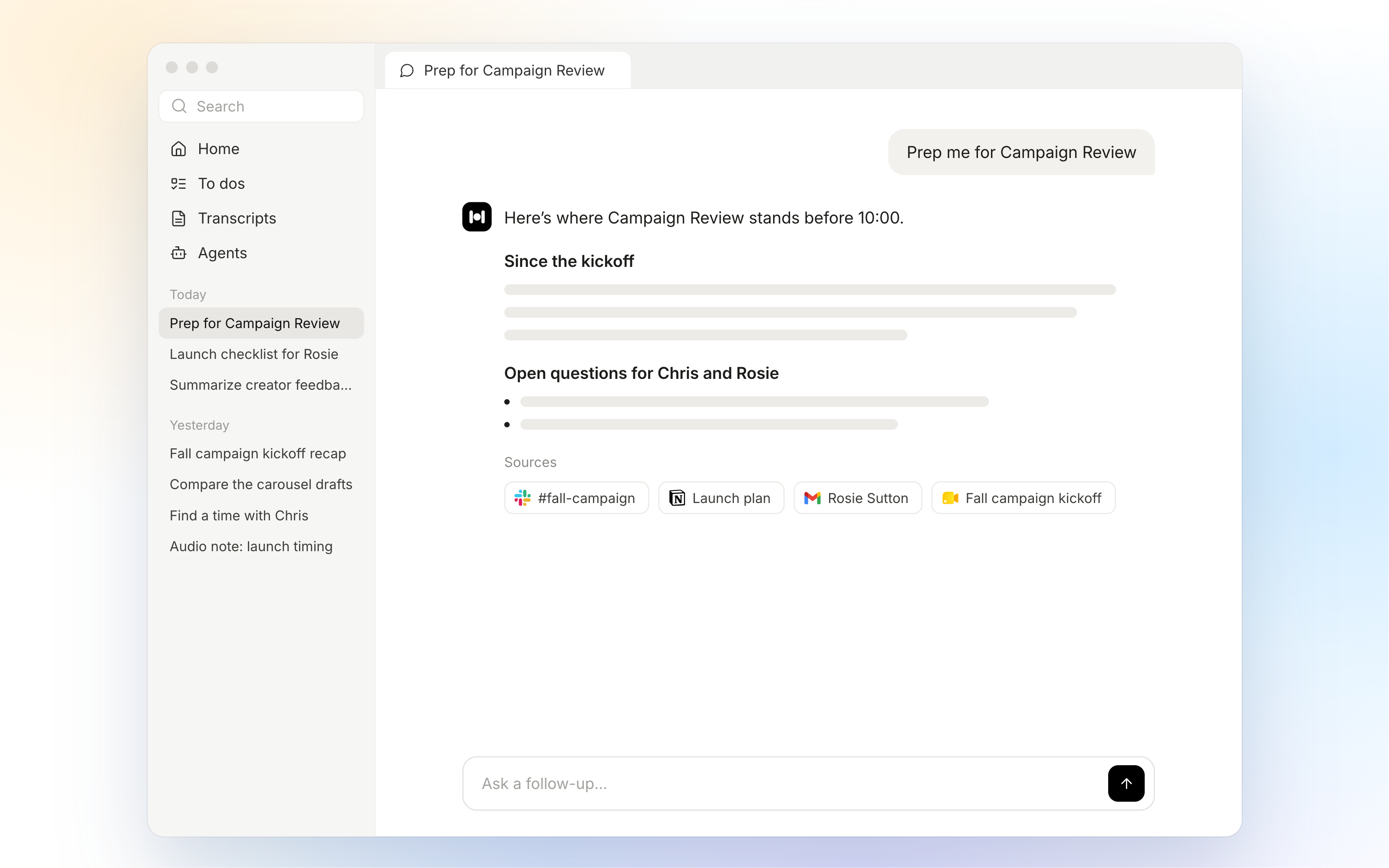
Chat now has a full page. You can ask Highlight to prep you for a meeting, catch you up on a project, or turn rough notes into a plan. Highlight knows your work from your screen, meetings and apps, and bridges the context from across your workspace to give you what you need.
Transcripts: Find Meeting Notes, Decisions, and Action Items
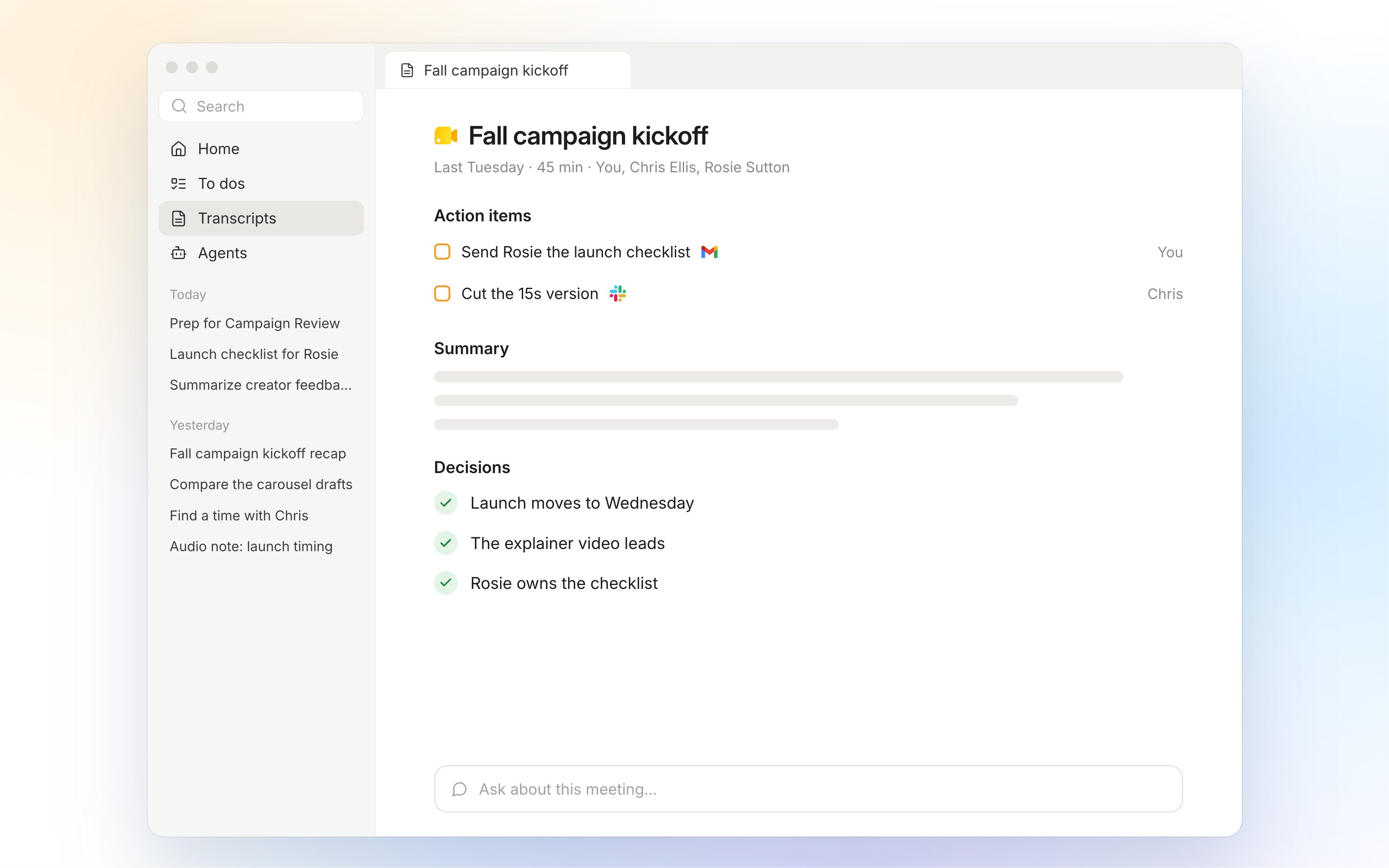
Transcripts holds the summary, decisions and full transcript of your past meetings. If you need to refresh yourself on the notes from last week’s kickoff or can't remember who owned what on a project, open the meeting there. The action items from the meeting are outlined at the top, the conversation is summarized below, and you can chat with the meeting to find any other information you need.
Agents: Put Recurring Work on a Schedule
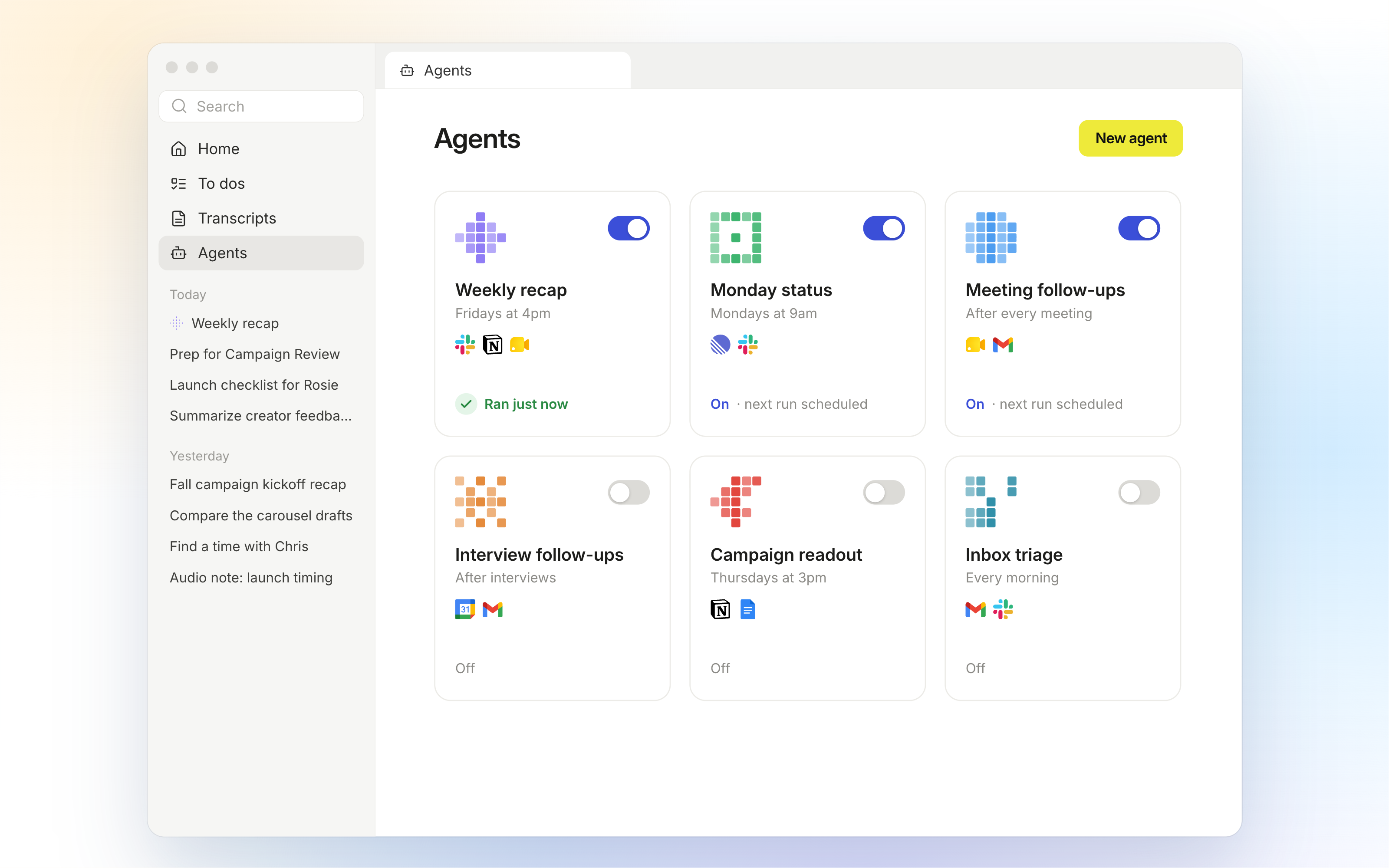
There are some tasks that happen on a regular basis: an end of week recap, Monday status update, post-interview follow-ups, or campaign status readout. In Agents, you can review and activate the agents you need to handle your recurring work. We’ve done the bulk of the work so all you need to do is turn an agent on and choose when it runs.
Meeting Teams Where They Work
This is the first version of the desktop app, and it'll keep changing as we hear from you. If you already use Highlight, the desktop app opens by default after you update. If you're new, download Highlight and see your workday in one window.
Highlight Desktop App FAQs
What is the Highlight desktop app?
Highlight is an AI assistant for Mac and Windows that brings your workday into one window. It combines your daily brief, schedule, to dos, chat, and captured meeting notes, using context from your connected apps, meetings, and permitted screen content.
Is Highlight available for Mac and Windows?
Yes. The Highlight desktop app is available for both Mac and Windows.
How is the desktop app different from the side panel and Notch?
The desktop app gives you more room to plan your day, read longer answers, review drafts, and revisit meeting notes. The side panel keeps information beside your current work, while the Notch provides quick access to chat and meeting controls at the top of your screen.
Can I review drafts before Highlight sends them?
Yes. In To dos, you can review and edit prepared drafts before sending them to connected apps. Those drafts wait for your approval before they’re sent.
How do existing users access the new desktop app?
Update Highlight to the latest version. The desktop app opens by default after the update, and you can continue using the side panel and Notch alongside it.

